Quick Start Guide
Just want to get started? Here's a quick guide to launching InqScribe and transcribing.
Tip
For help installing InqScribe: How do I install InqScribe?
1. Launch InqScribe
Double-click the InqScribe application to get started. The application loads, and the splash screen appears. Once the application is loaded, the splash screen goes away, and the InqScribe Library window appears.
If this is the first time you've ever used InqScribe, the Welcome to InqScribe window will appear.
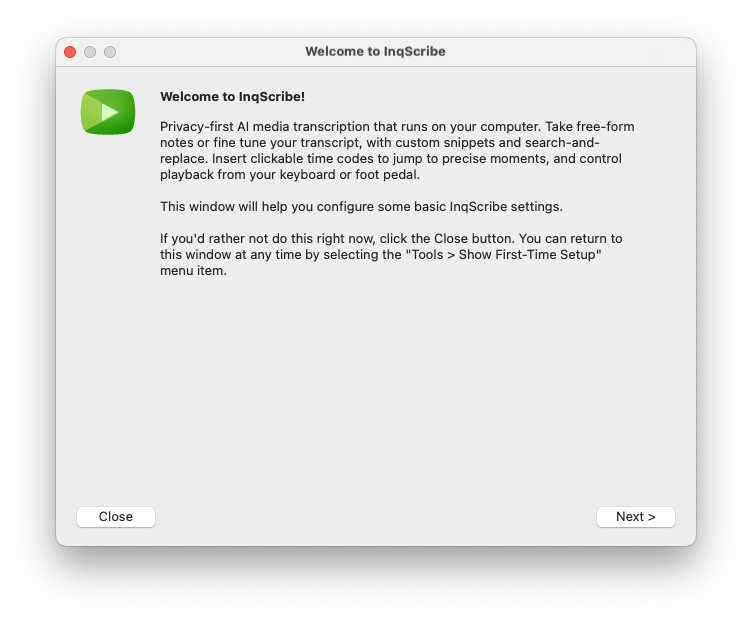
This window walks you through some initial setup tasks and choices. We suggest you walk through it, but it's not required. If you do work through the Welcome window, please do two things:
- On the page called Download a Transcription Model, go ahead and click Download Base Model. This will enable automatic transcription later in this guide.
- On the page called Register InqScribe, go ahead and request a free trial. Without a free trial, you will not be able to edit text in the document window and automatic transcriptions will be limited to 30 seconds.
Note
If you don't request a free trial, that's fine. Everyone gets a free trial, but it's a time-limited trial and we understand if you don't want to start the clock yet. However, if InqScribe is unregistered, it will add text to the document window to help explain what's going on. This text will not be reflected in the screen shots in this guide, which assume you started your trial.
2. Library Window
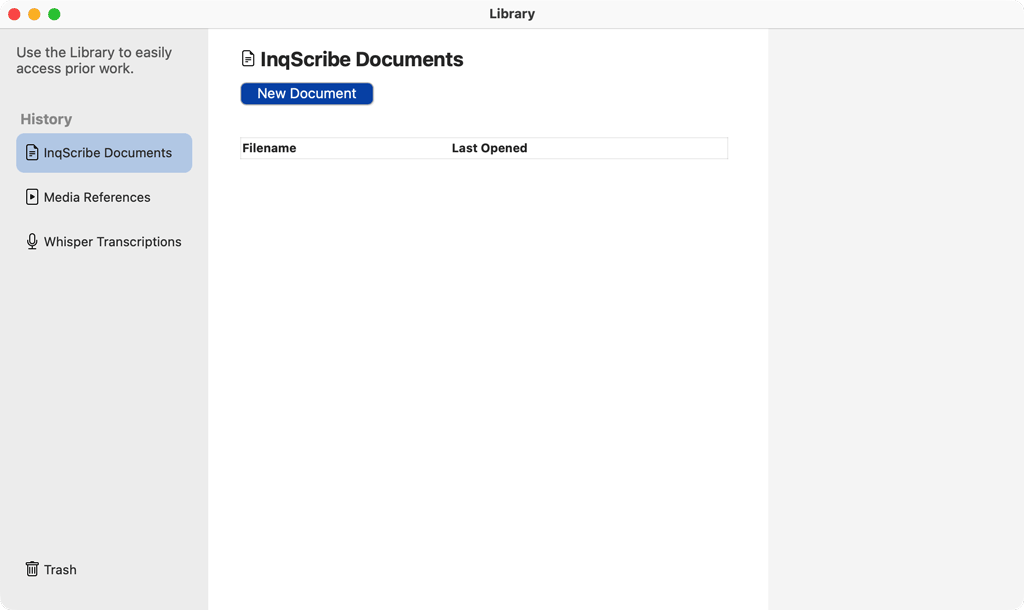
Use the library to quickly access your prior work. As you create documents, use media, and generate transcriptions, the library automatically creates a history of your resources.
The library has three main sections:
- InqScribe Documents: Documents are where you can control your media playback as you take notes or transcribe. This is where you will spend most of your time.
- Media References: This is a record of all the media files you have used with InqScribe. Any one media file may be used by multiple Documents or Transcriptions.
- Whisper Transcriptions: This is a record of all the automatic transcriptions you have created using InqScribe. You can use transcriptions to populate any number of InqScribe documents.
For the purposes of this Quick Start Guide, we will focus on InqScribe Documents. In the sidebar, click on the InqScribe Documents tab and then at the top of the main panel, click New Document. A new, untitled document window appears.
3. Overview of InqScribe Documents
There are three basic components of the document window.
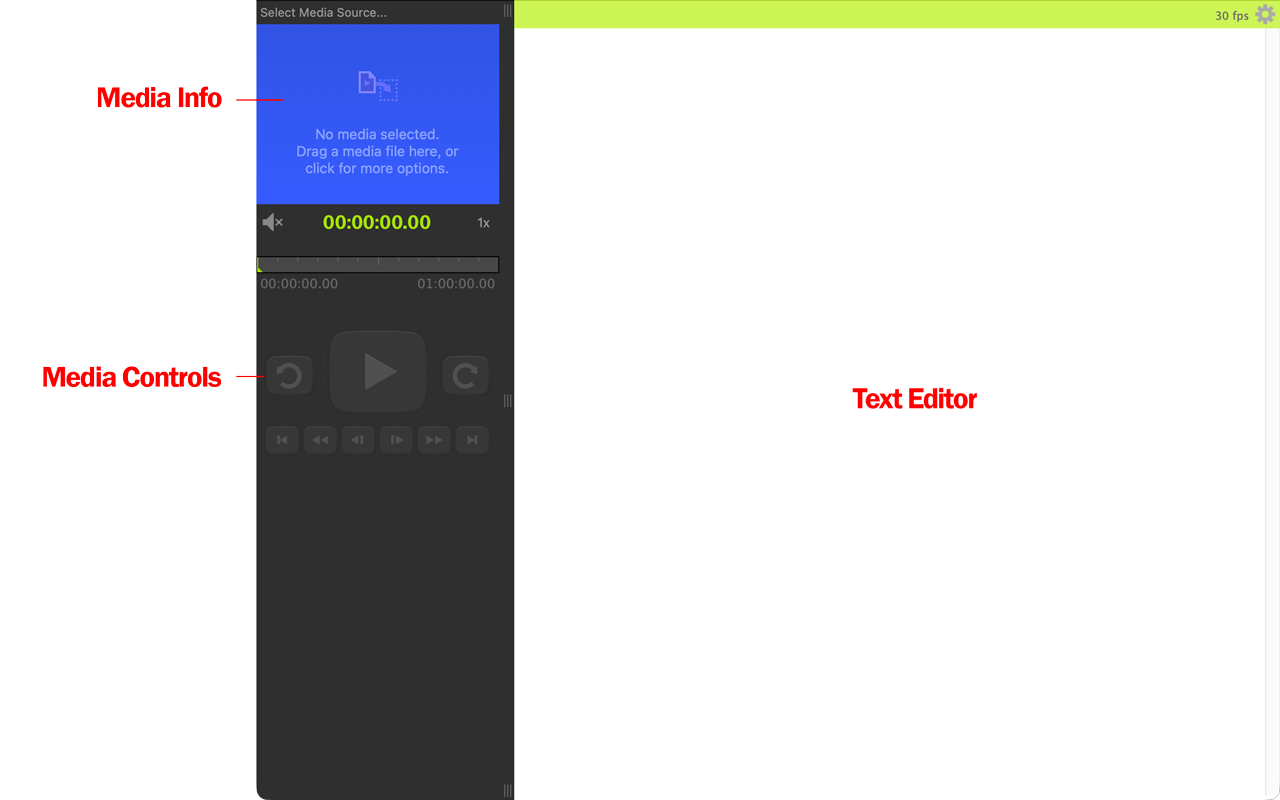
The upper left section of the window is reserved to define and display the media file (you'll get to that next).
The remote control buttons in the lower left will be used to control the media. Since you haven't selected a media source yet, they are disabled.
The text of the document — this can be a transcript, notes, or whatever you choose — takes up the right hand side of the window.
4. Select a Media Source
The first thing to do is to select the media source you'll be working with. Click the empty blue media window or the No Media Selected button in the upper left. This brings up the Select Media Source... dialog shown below.
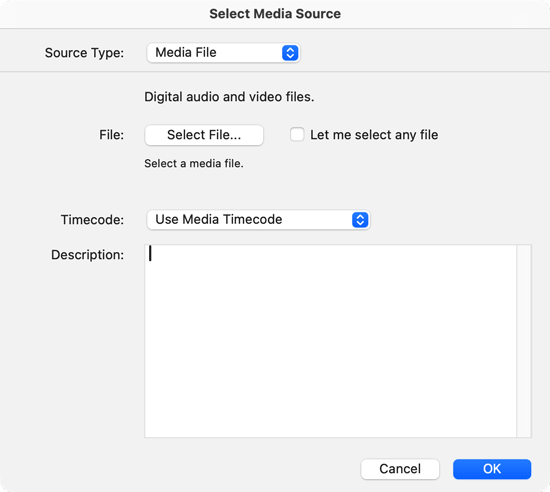
Every InqScribe document connects one media source to one transcript. A media source can be a file, a URL, or offline media.
- InqScribe uses AVFoundation (macOS) or Microsoft Media Foundation (Windows) to control media files and URLs.
- For offline media, InqScribe offers a stopwatch or clock timer for timecode references to external events. InqScribe can't control tape decks.
Note that the Select Media Source... dialog assumes that you're going to work with a digital media file, so Media File is already selected in the popup menu. If you wanted to work with a Media URL or an offline source (such as a timer, stopwatch, or wall clock), you would select the appropriate source type.
In this case, let's assume that you have a video file you want to transcribe. Press the Select File... button. This displays a standard "open file" dialog. Navigate through your hard drive (or networked file server) to find the file you want to work with, and then click Open.
Tip
Media playback may be slow if you select files on network servers. Consider copying the file to your local hard drive and selecting that copy instead.
Your dialog should now look something like the one below. The full path name of your selected file is shown below the Select File... button.
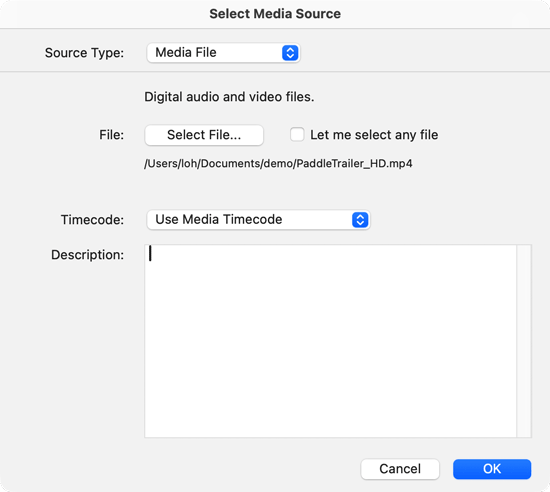
For now, ignore the Timecode and Description fields. You can read more about them on the Selecting Media Sources page.
Press the OK button. InqScribe will now automatically load your media file.
When InqScribe loads the media, if it detects that the media includes audio, it will show a dialog asking you whether you want to automatically transcribe the media.
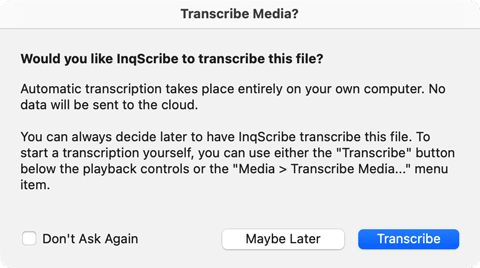
For now, click Maybe Later. We'll circle back to talk about automatic transcription later in this guide.
5. Use the Remote to Control the Movie
Now that InqScribe has loaded your media file, you're ready to go. Note that InqScribe might have resized the window slightly when it loaded the media file.
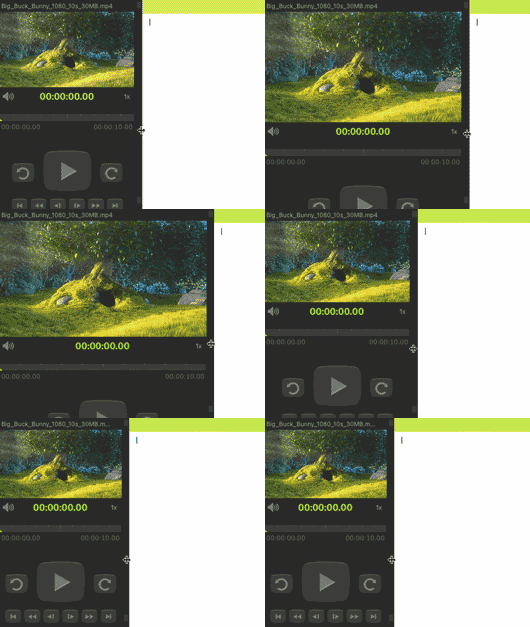
If you need to change the size of the video, grab the splitter control located between the video and your transcript. Move this splitter left to make the video smaller and right to make the video larger.
Using the Interactive Timeline
The first thing to note in detail is the Interactive Timeline.
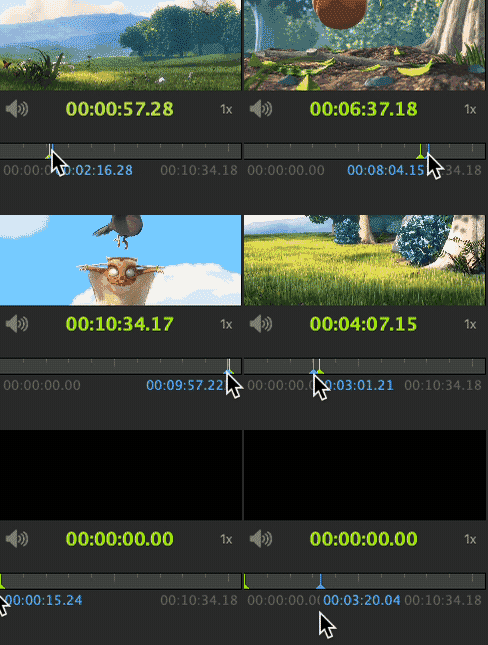
The timeline shows you the start time, end time, and current time of your movie. You can also easily jump to another location by mousing over the timeline. When you do so, a blue indicator tracks your position and shows you the precise time that you have selected.
Click the green current timecode to insert it into your transcript. Hover over the timeline and click to jump to that point.
You can also use the mouse to "scrub" through your movie. If you click and drag while in the timeline, you can rapidly move back and forth through the movie to find a specific scene or event.
Controlling Play Rate
The second thing to note are the Play Rate Controls, located to the top right of the timeline, opposite volume control.
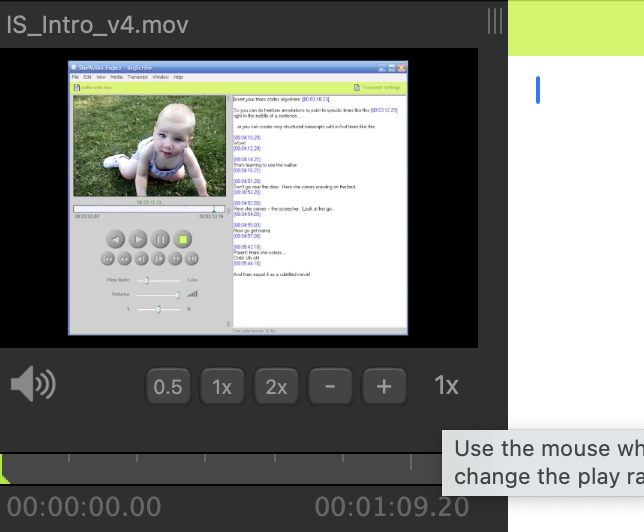
The play rate refers to the speed at which the movie will play. By default, this is the real playback speed of the media: 1x (the abbreviation means "1.0 times normal playback speed"). Hovering over Play Rate Control will allow you to select other play rates. There are quick access buttons to select 0.5x, 1x, and 2x.
Use the + and – icons to adjust the speed in 0.1x increments
Tip
You can also control the speed using a mouse wheel while hovering over the current play rate.
This is useful if you are transcribing and you need to slow down playback so that you can better understand what's being said, or so you can align your typing speed with the playback rate. Being able to control the playback rate makes transcription more efficient because you can transcribe longer sequences without having to pause the movie or back up and replay a section that went by too fast.
You can use any of the remote buttons to control the video. The play rate is honored when you use either the play forward or play backwards buttons. The fast forward and rewind buttons have preset speeds.
All buttons have tooltips describing what they do, so feel free to play with the controls. Next, we'll do a little manual transcription to get a feel for what it is like to work with InqScribe.
6. Use the Keyboard to Annotate and Control the Movie
Now that you're comfortable controlling the media, try inserting some timecodes. The basic model of use for InqScribe is that you will use timecodes as "bookmarks" into the audio or video sequence. Typically, you will insert a timecode and then enter any notes or literal transcription that relates to that time segment.
Note that this approach uses a single timecode to indicate the start of the time segment you're annotating. You don't have to enter an end time. (If you need explicit end times because you're planning to export InqScribe data into another program that requires them, InqScribe can automatically generate end times when you export your data.)
Inserting Timecodes
Inserting a timecode is easy. Select the Edit > Insert Time menu item or simply press Ctrl+; (Windows) or Cmd+; (macOS). InqScribe will insert a timecode that looks like this:
[00:00:04.29]
The timecode is inserted in SMPTE-format (hh:mm:ss.ff)) and by default assumes 30 frames per second. (The number after the decimal point is the number of frames.) So this example time is equivalent to 0 hours, 0 minutes, 4 seconds, and 29 frames into the movie.
(If you need to work with timecodes, but not at 30 frames per second, you can. See Timecode Formats for more information.)
The brackets around the timecode are optional. You can also change the color used to show timecodes. Use the Preferences dialog to change these settings.
Add a few more timecodes until your transcript looks something like the one above. Often, transcripts start like this: you browse through the video, inserting timecodes at points of interest, with an eye to returning to those sections for closer study (or transcription) later.
Using Timecodes as Hyperlinks
Now that you have inserted some timecodes in your transcript, you can use those timecodes to jump to different points in your media file. You can think of each timecode as a little hyperlink. If you mouse over a timecode, your mouse cursor will turn into a pointer. If you click on the timecode, the movie will jump to that specific time. Try it.
You can learn more about using timecodes to navigate through your media source on the Timecode Navigation page.
Shortcuts: Pause and Skip Back
You've already seen one keyboard shortcut: Ctrl+; (Windows) or Cmd+; (macOS) inserts the current time into your transcript. But InqScribe also lets you define any number of custom keyboard shortcuts that you can use for controlling media playback.
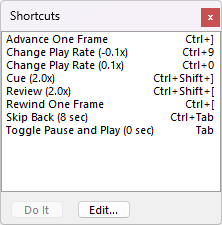
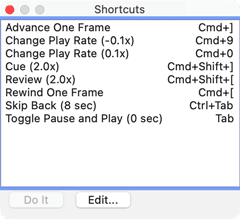
The floating Shortcuts window shows all your currently available shortcut commands. (If the window is not open, use the Tools > Show Shortcuts menu item to open it.)
There are two highly useful shortcuts that InqScribe provides by default: Toggle Pause and Play and Skip Back.
Toggle Pause and Play is initially assigned to the Tab key. This shortcut simply pauses the movie if it's playing, and plays the movie if it's paused. A simple command, but a useful one.
The Skip Back command is initially assigned to Ctrl+Tab. When you press this shortcut, the movie will "skip back" 8 seconds. The current state of the movie (e.g. paused, playing, fast forwarding) will be preserved. Skip back can be extremely useful when transcribing; you can think of it as the "what did they just say?" button.
Tip
The length of the skip back is customizable. By default, it's set to 8 seconds, but you can change that if you prefer a shorter or longer jump. You can even assign multiple skip back shortcuts, each with different durations!
If you're interested in reading more about how to define keyboard shortcuts, select Edit > Edit Shortcuts... or read more about keyboard shortcuts.
Snippets: Quick Entry of Common Phrases
Another very useful feature of InqScribe is the ability to enter common phrases quickly. For example, if you are transcribing an interview, it can be very useful to have the names of the interviewer and the subject mapped to shortcuts.
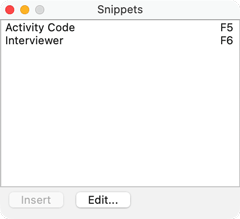
We call these common phrases "snippets." The floating Snippets window shows all your currently available snippets. (If the window is not open, use the Tools > Show Snippets menu item to open it.)
InqScribe provides two example snippets by default: Interviewer and Activity. Interviewer will insert the current timecode, followed by the text Interviewer: Snippets like this are extremely useful during transcription. Activity inserts a simple code that a researcher might use to denote a certain kind of activity. You can search for such codes later when reviewing the transcript, or import the text into another qualitative research package that can do more sophisticated analyses using such codes.
There are several ways to enter a snippet. If the Snippets window is open, you can select the snippet you want and press the Insert button. Alternatively, just double-click the snippet.
You can also assign a shortcut key, such as CtrlF1, to the snippet. In that case, just press the key to insert the snippet.
Finally, you can quickly activate the Snippets window, even if it's not open, by using the Edit > Insert Snippet... menu item. This command opens and activates the Snippets window. You can then use the keyboard arrows to change the selection, or type the first few letters of the snippet you want to select it. Then press Return or Enter to insert the snippet. Note that with this technique, the Snippets window will automatically close itself if it was hidden when you selected the menu item.
If you're interested in learning more about snippets, select Edit > Edit Snippets... or read more about snippets.
7. Create an Automatic Transcription
Let's talk about automatic transcription. Before you can transcribe, you need to download a model.
Tip
Whisper, the AI used by InqScribe, uses model files to transcribe audio. Different models will lead to different results. Smaller models are faster but are also less accurate. Larger models will take longer to transcribe and require more computing power, but may be more accurate. We encourage you to experiment with additional models to see if they provide better results.
When you first launched InqScribe, you might have chosen to download our recommended model as part of the initial setup process. If not, please open the Tools > First Time Setup menu, go to the Download an AI Transcription Model page, and click the Download Base Model button. Once that page says "A model is installed -- you're ready to transcribe!", you can close the window and continue.
To generate a word-for-word transcription of your media file, click the Transcribe button beneath the media controls.
A window appears that asks you to specify the "model". The Base model is a good place to start.
Choose your model, and click Transcribe. InqScribe will start your transcription. It might take a while, depending on the size of your media file and the model you chose.
Reviewing Your Transcript
Once the transcription finishes, the new transcript will open up inside your InqScribe window. At the top you can adjust the format of your transcript. Try playing with these controls to see how they affect your transcript.
The results are displayed in the "Preview" section of the document.
Once you are happy with the formatting options, click Use Transcription and your transcript text will be inserted into the document. You may now use InqScribe's editing tools to fine-tune your transcript, or click on timecodes to visit specific points in your media file.
Note
If InqScribe is unregistered, only the first 30 seconds of your audio will be transcribed, and you will not be able to edit text once the transcript in inserted into your document. Request a free trial or purchase InqScribe to remove these limitations.
Learning More About InqScribe
That's the end of the Quick Start Guide. You now know how to create a document, define a media file, control the media, insert timecodes into a transcript, and use timecodes to move about a movie. That's all you need to know to be productive with InqScribe. Use the rest of this documentation to learn more about specific aspects of InqScribe.