Creating Automatic Transcriptions
InqScribe uses AI to generate automatic transcriptions. Learn more about Whisper, the technology InqScribe uses to create private, secure transcripts that never leave your computer.
You can also use InqScribe to take notes or transcribe manually.
Generate a Transcription
Creating an automatic transcription of your audio is easy!
1. Create an InqScribe Document
Read how to create a new InqScribe document.
2. Select a Media Source
Read how to select a media source.
3. Transcribe
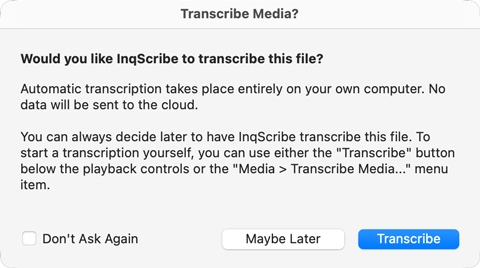
InqScribe will automatically ask you "Would you like InqScribe to transcribe this file?" Choose Transcribe, Maybe Later, or Don't Ask Again. (This prompt will not appear if you've previously selected "Don't Ask Again.")
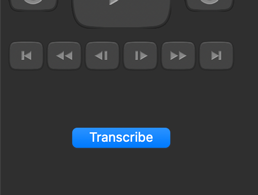
Alternatively, click the Transcribe button beneath the media controls.
Tip
Transcribe Button States. The Transcribe button changes state based on your InqScribe document.
- No button: Transcription is unavailable. This occurs if no media has been defined, the media has no audio track, or because the selected media type (e.g. offline media stopwatch) does not support audio.
- Highlighted button: Transcription is available, and your transcript is empty, so the option is emphasized.
- Standard button: Transcription is available, but your transcript already contains content, so the option is not emphasized.
4. Select a Model
To transcribe, you need to download at least one Whisper model. You might have already done this during your First-Time Setup of InqScribe. If you have not yet downloaded a Whisper model, you can use the Manage Models window to do so.
Tip
Choosing a Model. The default models are Base, Small, Tiny. Each model will lead to different results. Smaller models are faster but are also less accurate. Larger models will take longer to transcribe and require more computing power, but may be more accurate (not always!). We encourage you to experiment with additional models to see if they provide better results. Read more about Whisper.
5. Watch InqScribe Transcribe!
InqScribe will generate a raw output of your audio within a transcription window. This might take a while, and speed will depend on your computer's processing ability.
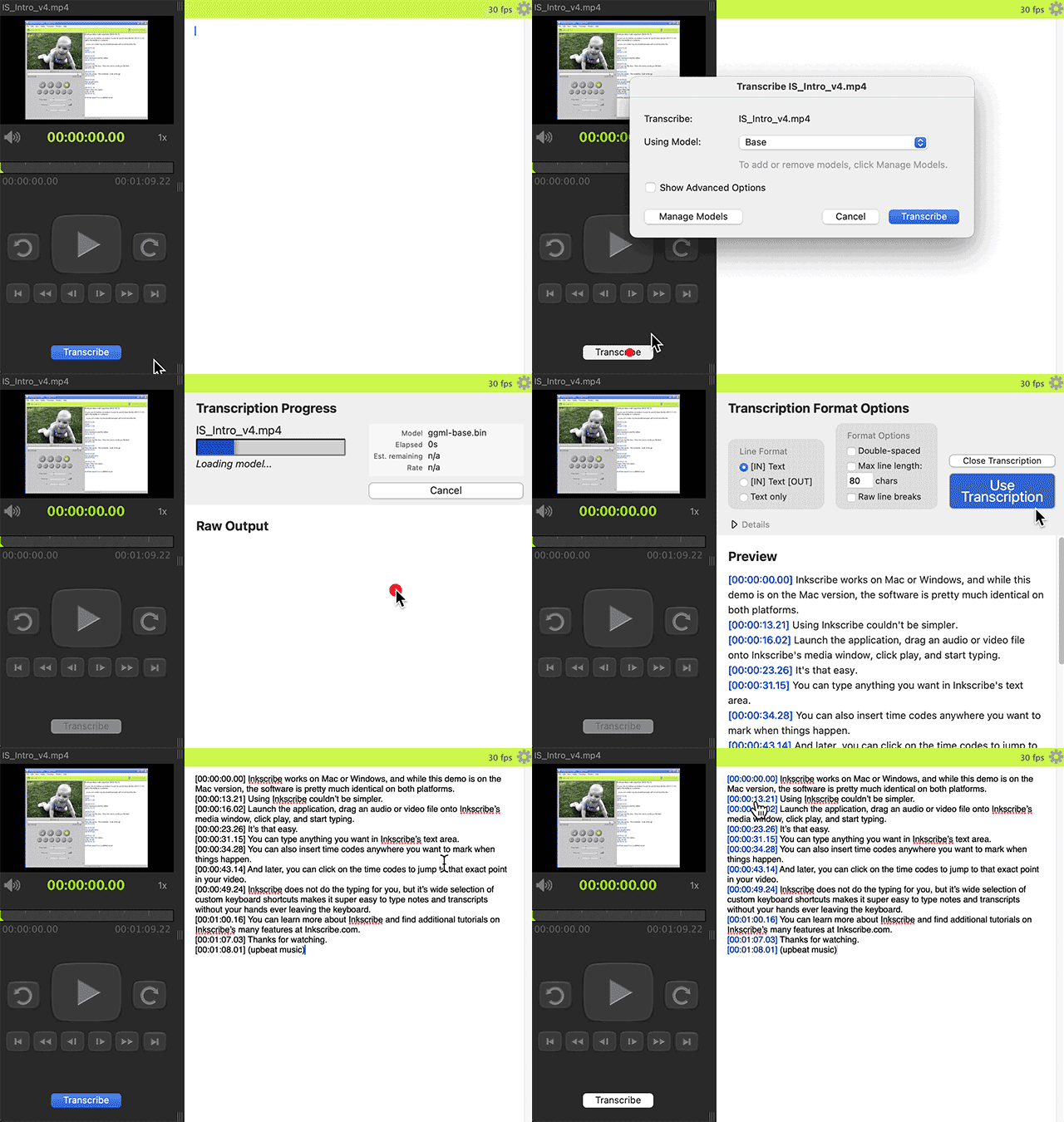
6. Format Your Transcription
Once InqScribe has finished generating your transcription, you can choose Transcription Format Options.
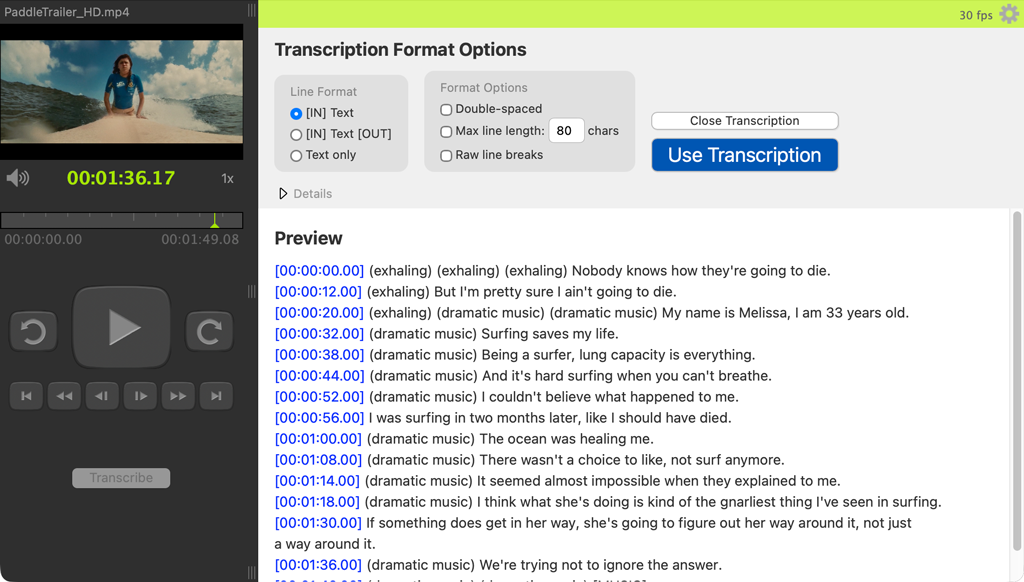
- Line Format determines the location of timecodes in your transcription. Place timecodes at the start of each line, at the start and end of each line, or don't include timecodes at all.
- Format Options allow you to double space lines, choose the maximum character length of each line, or use raw line breaks instead of the line breaks Whisper chose for you.
Note: Your transcription is not yet editable until the next step!
7. Move Your Transcription into an InqScribe Document
Once you are satisfied with your transcription settings, click Use this Transcription to move your transcription into an InqScribe document. There, you can manually edit, refine, annotate, or code your transcription using InqScribe's annotating and note-taking features.