Preferences
Select the Edit > Options... menu (Mac users select InqScribe > Settings...) to modify application-wide preferences for InqScribe. The Preferences dialog is split into two panes.
General Preferences
Backups
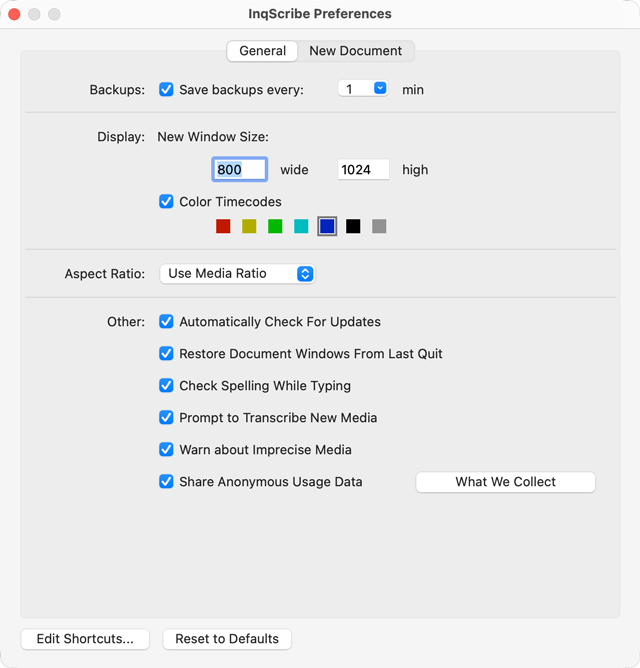
InqScribe can create automatic backup (autosave) files to preserve your work if you suffer a system crash. You can define the interval between saves here. Backup files are automatically recovered the first time you run InqScribe after a crash.
Display
If you're not happy with InqScribe's sizing of new windows, you can override it here.
You can also indicate whether you want timecodes in your transcript marked with a specific color. Click the color chip to change the color used.
Aspect Ratio
You can specify the default aspect ratio for loaded media sources. Normally, Use Media Ratio is fine, but if you're working with a lot of anamorphic footage you may want to set this to another value, like 16:9.
Other
If Automatically Check For Updates is checked, InqScribe will automatically query the InqScribe web site once a week to see if a new version has been released.
You can also use the Check Now button to check for a new version at any time. (The Check For Updates... menu item does the same thing.)
Note
Privacy Note: When InqScribe checks for a new version, it sends enough information for the InqScribe web site to determine if you have the latest version and if the newest version is a free update for you. This requires sending an encrypted version of your license code. If you'd rather not send this information, turn off automatic checking.
If Restore Document Windows From Last Quit is checked, InqScribe will remember which document windows are open at the time you quit the program. Then, the next time you launch InqScribe, it will re-open those windows. This is useful if you're working on multiple transcripts at the same time.
If Check Spelling While Typing is checked, InqScribe will utilize your system's spelling utility to underline misspelled words. Right-click or Control-click opens a contextual menu with additional spellcheck options.
If Prompt to Transcribe New Media is checked, InqScribe will automatically ask you to begin an automatic transcription as soon as you add a new media file to an InqScribe document.
If Warn about Imprecise Media is checked, InqScribe will warn you if you are using a media file that uses imprecise timing. This means that inserted timecodes will not exactly match the media's current time position. Clicking on transcript timecodes will result in the media seeking to an approximate, but not exact, location in the media.
If Share Anonymous Usage Data is checked, InqScribe will send anonymous, generalized data about your use of InqScribe features to our servers, to help us improve the product. Even if this option is checked, InqScribe will never transmit the contents of your files. Your transcripts and the content of your audio and video files belong to you and never leave your computer. For more about this, read our Telemetry Policy.
Edit Shortcuts
Keyboard shortcuts and text snippets are saved with your preferences file. This button opens the shortcut editing dialog.
New Document Preferences
These preferences define the transcript settings for newly created documents. They do not affect the settings of existing, already open documents.
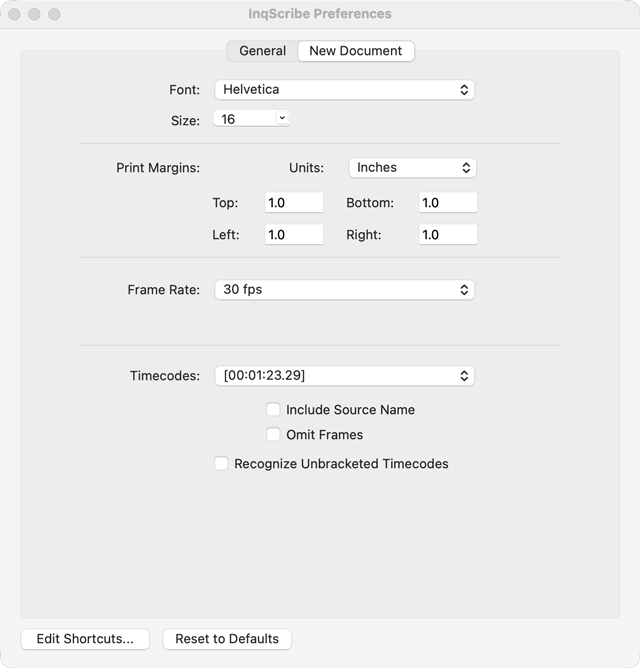
See the Document Settings page for more information about these settings.