Troubleshooting
Here are some tips for dealing with common InqScribe problems. If your problem is not covered here, please use the Support Page. There you will find access to detailed Knowledge Base of support articles, in particular a section devoted entirely to troubleshooting specific issues. You can also find a link to contact a support representative.
Recovering from Crashes
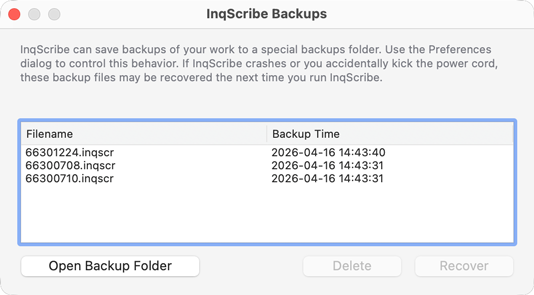
Saved Backups
InqScribe can create automatic backup (autosave) files to preserve your work if you suffer a system crash. you can adjust the interval between saves in the Preferences dialog. Backup files are automatically recovered the first time you run InqScribe after a crash. Note that some crashes can happen before a backup is saved, so unfortunately backups might not preserve all your work.
Reporting Crashes
After a crash, you might receive an error report. This contains valuable information that describes the nature of the issue, and can be very helpful in solving the issue. If at all possible, use the automatic Bug Reporting feature provided to send this error report to InqScribe Customer Support. Or, save the error report to a separate document and send it separately to support@inqscribe.com.
Reporting Issues
Submit Bug Reports
If you are experiencing a problem that you can't solve, the best way to get help is to use InqScribe's Report a Bug... feature. That will provide your support representative with some additional information to help diagnose the issue. Here is how:
- Go to the Help menu and choose Report a Bug…
- Make sure “include system information” is checked.
- Provide a detailed description of the issue, along with the exact steps that reproduce the issue.
- If you have already been in touch with Customer Support, include the ticket number for reference.
- Click send.
Provide Screenshots
In addition, it is very helpful if you can provide a screenshot that shows the problem. We often can notice details that you might not be describing. Here is how to send us a screen shot:
-
In Windows 11, Press PrtScn (Print Screen). This copies the entire screen to the clipboard. Paste it into Paint, Word, or another app using Ctrl + V.
-
On Mac, press Commend-Shift-3. This saves an image of your screen to a designated location, usually your desktop. Send us the resulting file(s) as an attachment to support@inqscribe.com.
Provide Detailed Descriptions
If the crash happens consistently, and you can describe the conditions that make it happen then please send us a description of the conditions in detail— enough detail to allow us to replicate the conditions on our end. The more detail you can send us, the better (and quicker) we can help you.
Additional Useful Details
-
Are you able to launch InqScribe at all? Does it crash during the launch process? After you load media? After you play video for a while then trigger a particular command or action?
-
Has InqScribe ever worked for you (i.e., used to work fine and then stopped working)? Or have you had this trouble from the start?
If you can respond to any or all of the above in your support request, we should be able to help diagnose your issue.
My Movie Doesn't Load
There are various reasons why InqScribe might not be able to load and display your media objects.
Can't Load a File
If you have defined a file-based media object, you may encounter loading errors in the following circumstances.
In general, you will be able to fix these problems by opening the Select Media Source dialog and re-selecting the media file via the Select File... button.
If InqScribe says it cannot find your file, the problem could be:
- The file is located on a file server, but your computer is not connected to that file server.
- The file is located on a DVD or CD, and the DVD or CD has not been inserted into the computer.
- The file has been moved. (In certain circumstances, InqScribe can find moved files.)
- If someone else created this document, they may have referred to a file on their local hard drive. You won't be able to access that file. The easiest way to troubleshoot this scenario is to look at the full name of the file that InqScribe tried to load, and check if that file actually exists on your computer.
Sometimes InqScribe might fail to load your media object, and the error message will say it could not load movie from file. In this case, InqScribe is able to find the file but cannot open it. This may occur because:
- The file is not really a media file. Check the documentation for a list of all media file types that InqScribe supports.
- The file is corrupt. To test this, try opening the file in another media player.
Can't Load a URL
When a URL-based media object fails to load, the problem may be related to your network connection.
Make sure you can access the media via a web browser. Open the Select Media Source... dialog and copy the URL. Paste the URL into your web browser. If the web browser also fails to show the media object, the problem has to do with the URL, not InqScribe.
Some likely problems:
- The link is not a direct path to the hosted file. Sorry, YouTube, Vimeo, and Google Drive links won’t work.
- The object is no longer at the given URL.
- The web server indicated in the URL is down.
- There is a firewall between you and the web server.
- You are not connected to the internet.
Media lagging or poor quality
If your media is lagging or displaying poor quality, here are some things to try:
- Make sure your media file is on your computer's hard drive and not a networked file server.
- Try re-encoding your video to be smaller resolution (e.g. 480p instead of HD). This will reduce data rate, file size, and video dimensions, thus reducing the strain on your computer's processor and resulting in better playback performance.
Auto-transcription Issues
For more information about how InqScribe uses auto-transcription, see the documentation on Whisper Auto-transcription.
Here are some common troubleshooting tips:
Seeing a lot of repetitions in my transcript.
This is a known issue with Whisper, the technology that InqScribe uses for automatic transcription. While improvements are underway, here are a few things you can try:
- Experiment with different models, both smaller and larger. Larger models are not always better; results may vary.
- Repetitions are often caused by long pauses in the audio. Try splitting your media into shorter segments or removing long pauses to improve results.
I've installed .NET 8 but InqScribe does not recognize it.
If you have installed .NET 8 on your Windows computer but InqScribe does not seem to recognize that .NET 8 is installed, you probably need to install .NET for both ARM64 and x64.
Please visit the InqScribe 3 and .NET 8 page and download and install both of these .NET installers:
- Intel CPU (x64)
- ARM CPU (arm64)
This is a known issue in the initial 3.0 release. This will be fixed this in a future version.
I'm getting a "Transcript Failed" message.
There is a known bug in the initial version 3.0 release that results in a Transcription Failed message when using a Windows computer with an ARM processor.
The workaround is to install .NET for both x64 and the ARM64. Please visit the InqScribe 3 and .NET 8 page and download and install both of these .NET installers:
- Intel CPU (x64)
- ARM CPU (arm64)