First-Time Setup
The first time you launch InqScribe, you will be prompted with a First-Time Setup wizard that walks you through the setup process.
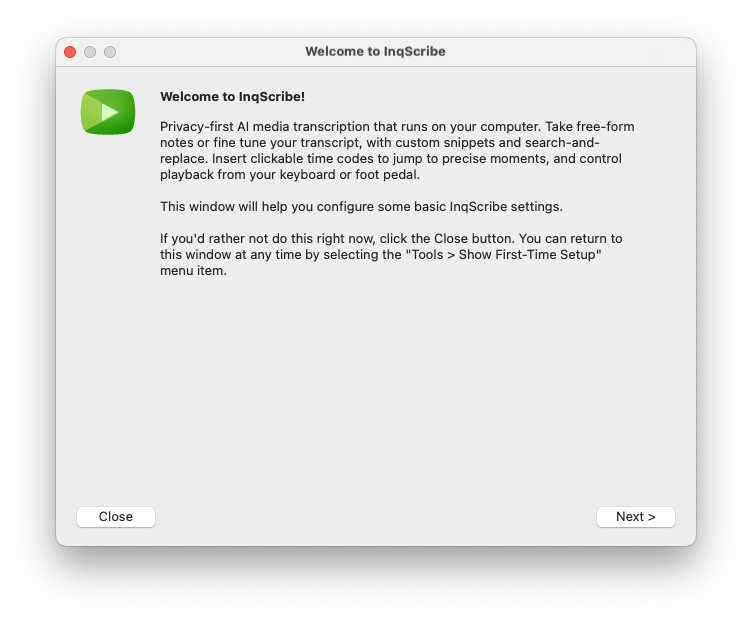
Click the Next and Back buttons to navigate through the steps of the setup process. Click Close at any time to dismiss the wizard.
You can re-open the wizard any time by selecting Show First-Time Setup in the Tools menu.
After the welcome screen, the setup process involves the following steps:
- Check for Updates?
- Download an AI Transcription Model
- Set up Foot Pedal
- Register InqScribe
- Help Make InqScribe Better
- You're All Set
Check for Updates
Enable this setting to "Check for Updates Automatically" so InqScribe can automatically notify you when a new version is available. No personal information or data is shared when checking for updates, only the version number of the current app.
You can always change your mind later in InqScribe's Preferences. Likewise, you can check for updates manually my selecting Check for Updates... in the InqScribe menu (macOS) or in the Help menu (Windows).
Download an AI Transcription Model
If you wish to use InqScribe's automatic transcription features, you will need to download at least one Whisper model. Whisper is a well-established AI, which uses model files to transcribe audio (we suggest starting with the Base model).
By downloading models to your computer, all transcription activity happens on your machine; no data is transmitted to the cloud. This is key to InqScribe's privacy-first approach to AI transcription (learn more about Whisper and InqScribe's privacy-focused approach).
If you do not download a model now, you will have an opportunity to do so later, via the Manage Models window.
Set Up Foot Pedal
If you have a USB foot pedal that is compatible with InqScribe, you can click the "Set Up Foot Pedal" button to connect it to InqScribe.
IF you do not set up your foot pedal now, you can do so later using the Set Up Foot Pedal... option in InqScribe's Edit menu.
Register InqScribe
You may use InqScribe without registering, but you will not be able to edit transcripts, and automatic transcriptions will only transcribe the first 30 seconds of your audio file.
You may request one free, 7-day trial that unlocks all of InqScribe and lets you explore the app. Simply click the "Request Free Trial" button in this or any InqScribe window, or via Show Registration Status in the Help menu.
After that, please visit our online store to purchase a license. We offer a range of discounted and short-term licenses to meet your needs.
Help Make InqScribe Better
Enable this setting to send anonymous usage data to help us improve InqScribe. We take data privacy seriously. Usage data sent to InqScribe is completely anonymous, will never include information from your media files and transcripts, and cannot be used to identify you or your subject matter.
To see what information we do collect, read our Telemetry Policy.
You can always change your mind later by disabling this setting in the Preferences window.
You're All Set
You've reached the end of the First-Time Setup wizard. Click Done to close the window and get started in InqScribe. You can re-open the wizard any time by selecting Show First-Time Setup in the Tools menu.
To get started, open a new InqScribe document and assign a media file to it by clicking Select Media Source....
Once the media file loads, InqScribe will ask you if you want to transcribe the audio. If you decline, you can always start a transcription later via the Transcribe button. Read more about getting started in the Quick Start Guide.