Library Window
New in InqScribe 3, the Library Window helps you organize prior work in InqScribe. The Library provides quick access to the three main resources involved in your InqScribe work:
- InqScribe Documents: Documents are where you can control your media playback as you take notes or transcribe. This is where you will spend most of your time.
- Media References: This is a record of all the media files you have used with InqScribe. Any one media file may be used by multiple Documents or Transcriptions.
- Whisper Transcriptions: This is a record of all the automatic transcriptions you have created using InqScribe. You can use transcriptions to populate any number of InqScribe documents.
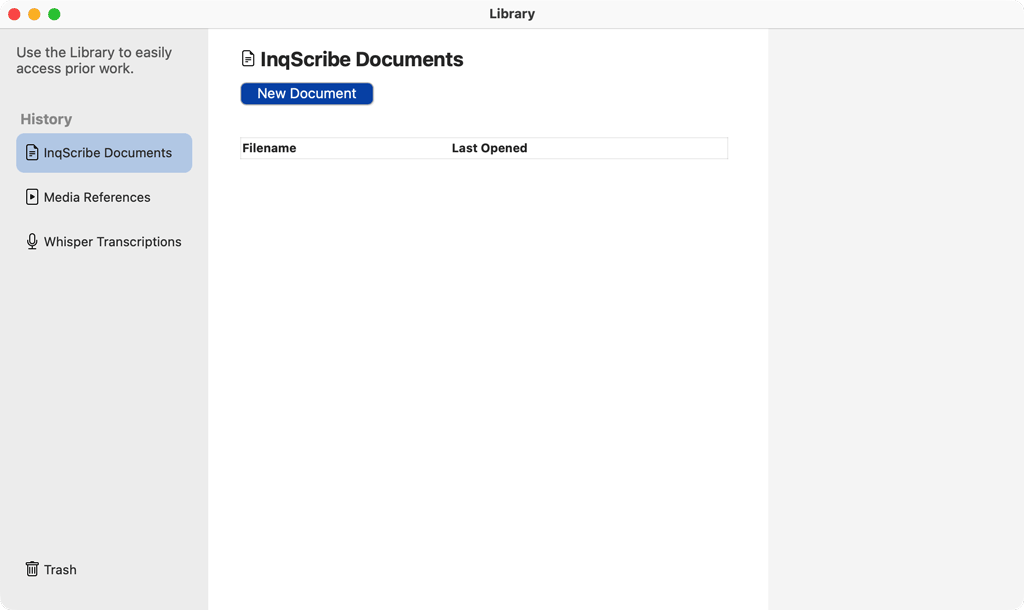
If you close the Library window, you can open it again via the Tools menu.
InqScribe Documents
InqScribe documents bring together your media and text within a single window where you can control video as you edit your text. Read more about creating InqScribe Documents.
The Library lists your recently used documents. When you select a document in the list, a panel appears on the right side of the window which displays information about it:
- the location of the document file on your computer. Click the Reveal button to open the folder on your computer where the document is stored. Click the Copy Path button to save to your clipboard the file path to the document's location.
- the date when it was last opened
- the media file it uses (if any)
- a button to Open the document
- a button to Remove the document from the Library. This simply removes the shortcut to that document; removing a document from the Library does not delete the document from your computer. The file will remain in its original location on your computer even if it is removed from the library.
- any Transcriptions associated with that document
Tip
The items listed in the Library are shortcuts to the actual documents stored on your computer. InqScribe does not actually store your documents; you organize and store your documents however and wherever you see fit, on your internal hard drive, an external drive, or a file server.
Media References
Media References refer to the media files on your computer that you have used in InqScribe Documents. When you select a media in this list, a panel appears to the right side of the window which displays information about it:
- the location of the media file on your computer. Click the Reveal button to open the folder on your computer where the document is stored. Click the Copy Path button to save to your clipboard the file path to the document's location.
- the date when it was last viewed a button to Remove the media from the Library. This simply removes the shortcut to that media file; removing media from the Library does not delete the media from your computer. The file will remain in its original location on your computer even if it is removed from the library.
- any documents that use the same media file. This helps you quickly find related documents.
Tip
The items listed in the Library are shortcuts to the actual media files stored on your computer. InqScribe does not actually store your media; you organize and store your documents however and wherever you see fit, on your internal hard drive, an external drive, or a file server.
Whisper Transcriptions
Whisper Transcriptions refer to sessions where you asked InqScribe to transcribe for you automatically.
Each transcription is associated with a media file. Some, but not all, transcriptions are associated with InqScribe documents (based on whether or not you decided to use the transcription).
The library list shows, for each transcription, which model you used, when the transcription occurred, and whether or not it completed successfully.
When you select on a transcription in this list, a panel appears to the right side of the window which displays information about it:
- the AI model used for the transcription.
- the media file used for the transcription.
- the duration of the transcription.
- the processing time it took to complete the transcription.
- the date & time it was completed.
- whether the transcription succeeded or failed.
- a button to Open the transcription
- a button to Remove the transcription from the Library, which in this case permanently deletes the transcription (though it may be preserved if you decided to use the transcription in an InqScribe document).
- any documents that use the transcription, as well as other transcriptions that use the same media. This helps you quickly find related documents & transcriptions.
Tip
Unlike InqScribe Documents and Media files, transcriptions are stored within InqScribe (though they exist only on your computer and are private to you). Therefore, if you remove a transcription from the library, you are permanently deleting it. That said, if you previously decided to use the transcription in an InqScribe document, it will be preserved within that document.